Trial 15 zile — verificare card 1 €. Configurare asistată inclusă.
Începe acum
🛒
Make a sale
Add items to the cart, apply discounts, and take payment.
- 1
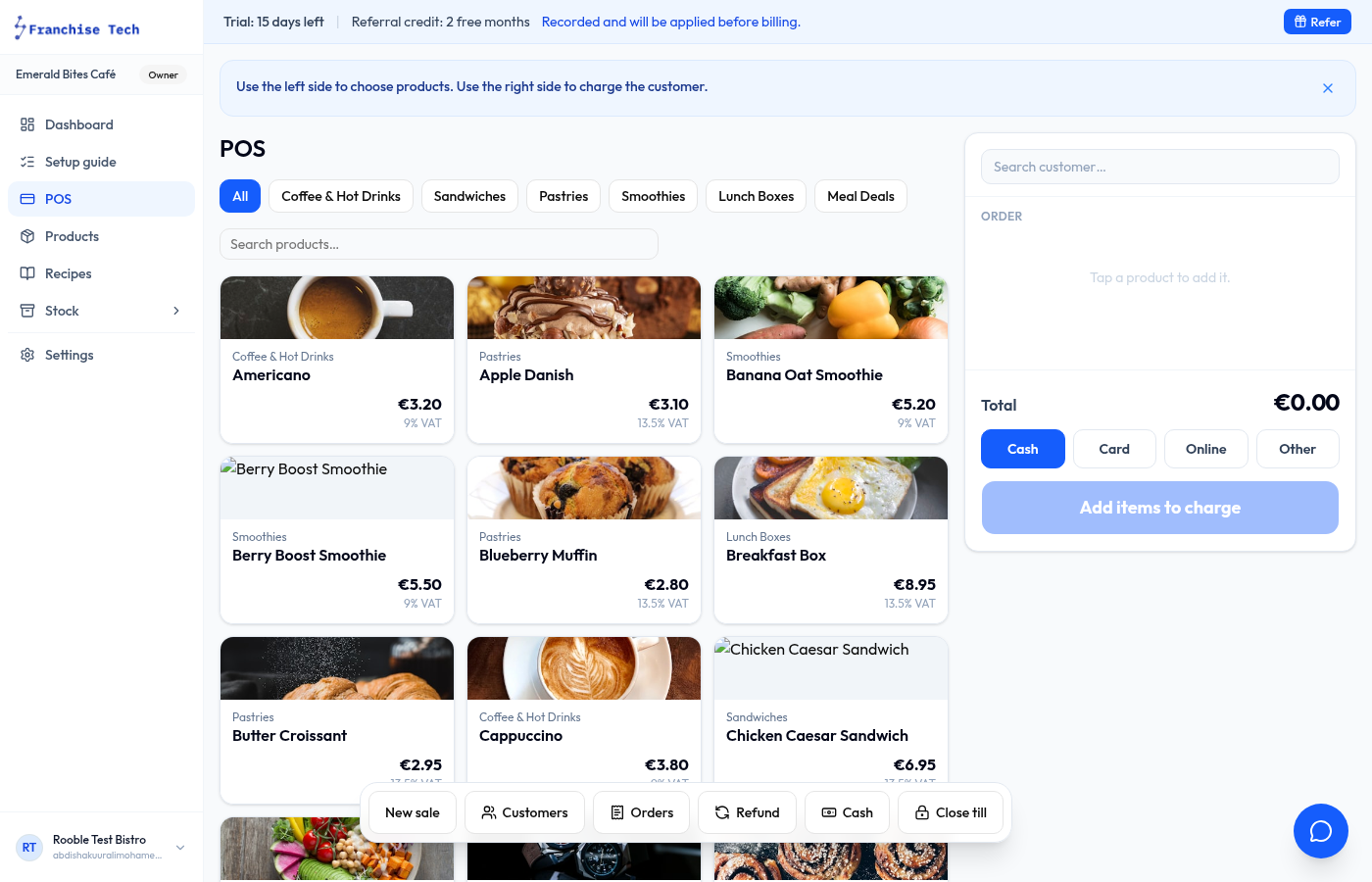
Open the POS
Click POS in the left sidebar. You will see your product grid on the left and the cart on the right.
- 2
Add items to the cart
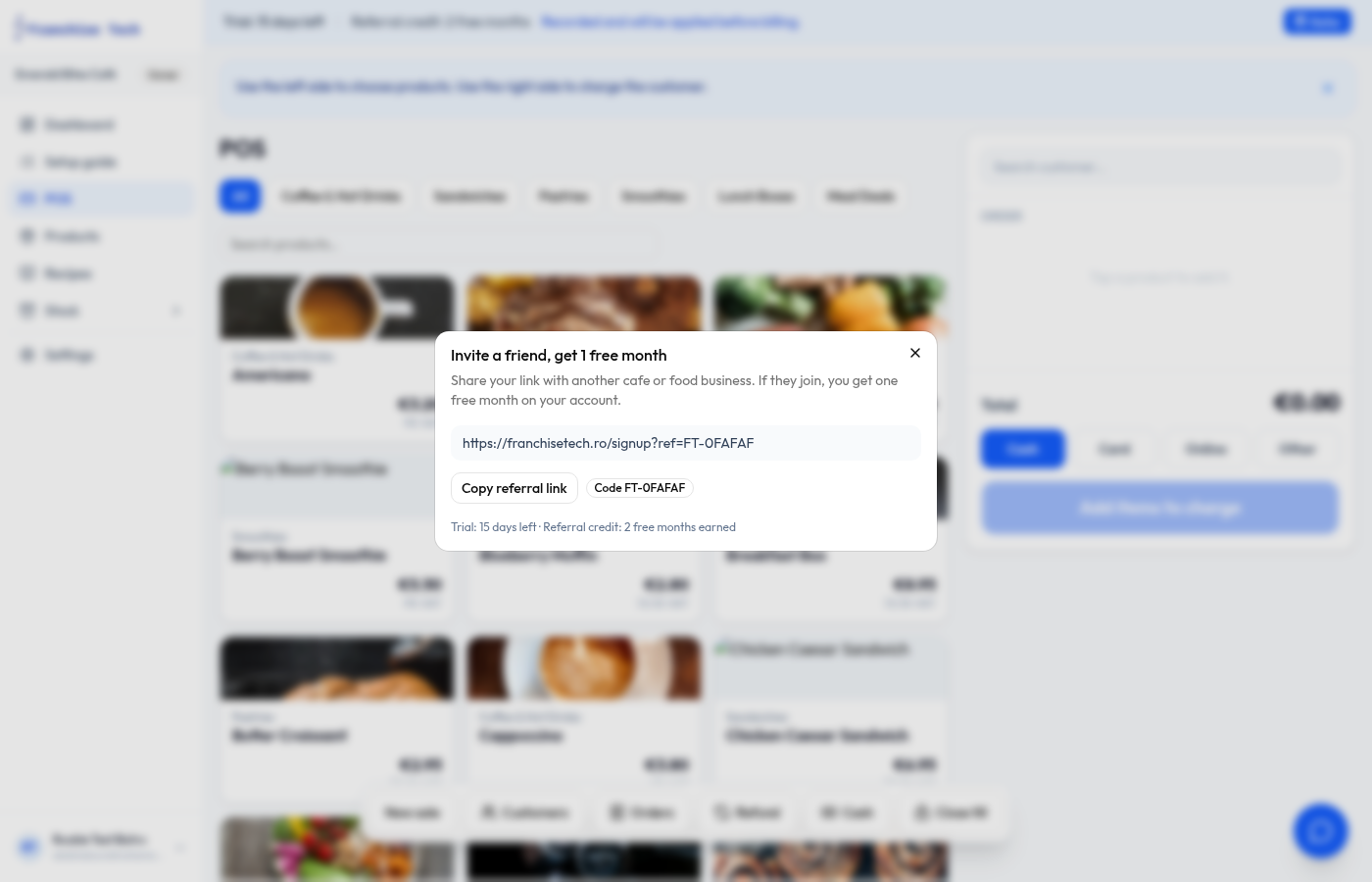
Tap any product tile to add it to the cart. Tap again to increase the quantity, or use the + / − buttons next to each cart line.
- 3
Apply a discount (optional)
Tap Discount below the cart total. Enter a percentage (e.g. 10%) or a fixed amount. The total updates immediately.
- 4
Charge the customer
Press the blue Charge €X.XX button. Select the payment method — Cash, Card, or Other — then confirm. The sale is recorded and stock is deducted automatically.
- 5
Add a customer name (optional)
Tap the customer field at the top of the cart and type a name or order number. Useful for table service or click-and-collect.
You are all set!
Still stuck? Use the chat widget in the bottom-right corner — our team replies within one business day.